
What a Template File Is and How it Can Help
⚠️Are you tired of someone opening your carefully formatted company letterhead document, forgetting to save a copy of it to their computer or folder, then adding their own text all over your template and saving those changes? (Full confession: I have been that someone!)
“💡 Why this matters
If you’ve ever spent time perfecting a Word document only to watch it get overwritten, reformatted, or permanently damaged—this post will save you frustration.”
One solution: instead of uploading a regular Word (“.docx”) file into the shared folder, put in a Word template (“.dotx”) file.
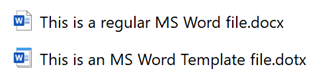
🗂️ Think of a template like a preprinted form
The icon for a template file gives a clue to its main feature: instead of a single page, the icon suggests a pad of paper—in this case, a pad of pre‑printed documents. Think of a medical office and the pre‑printed patient information form, when the receptionist tears off the top one and hands it to you to fill out.
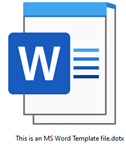
In our example, instead of a form, it is your carefully formatted company letterhead document.
A template file, when properly opened, opens a copy of itself as a regular Word doc (usually named Document1) instead of opening the file.
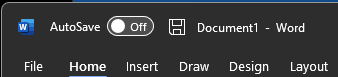
Any changes made to Document1 will not appear in the original .dotx file. Your template remains pristine.
🛠️Template File Creation
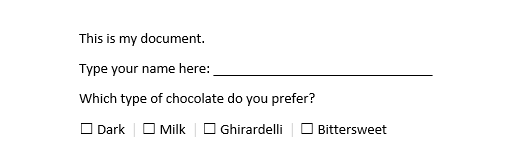
1. Create your document in Word.
It could be a form to capture information or the standard format for sharing a meeting agenda; whatever document you repeatedly use.
2. Save the file.
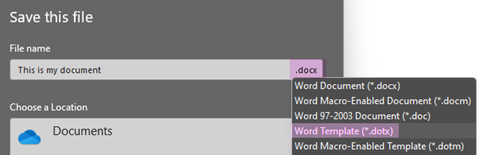
The default when saving is “.docx.” Click on “.docx” and select “Word Template (*.dotx)” from the menu.

3. Save.
Your template is now protected.

📂Opening a Template File
1. Template File on Your Computer
If the template file is in your computer, double‑click and a copy will open a copy of itself as a regular Word document.
2. Template File on SharePoint
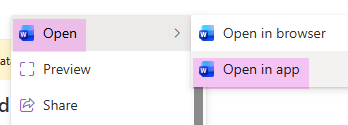
If the file is on SharePoint, a double‑click will open a read‑only version in the online version of Word. Instead, instruct the user to right‑click on the template file > Open > Open in app.
3. Open Your Document
A copy will open as a regular Word document.
✏️Editing a Template File
1. Edit a File on Your Computer
a. Open
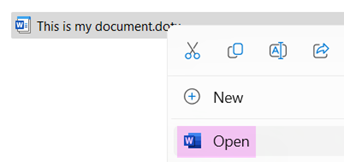
To edit a template file located on your computer, right click on the template file and select “Open.” This will open the template file rather than a copy of itself.
b. Edit
Edit your document as needed.
c. Save
Save your document.
2. Edit a File on SharePoint
a. Open
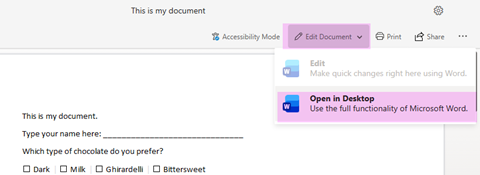
If the template file is on SharePoint, left‑click once, left‑click on the down arrow next to “Edit Document,” and select “Open in Desktop.”
b. Edit
Edit the document as needed.
c. Save
Save your document.
Of course, this will not prevent your coworkers from messing up your template, but it might help.
PRO TIP: Whenever I put a template file in a shared folder, I assume someone will unintentionally alter it, so I always add a subfolder containing a clean copy.
📌 Template File Quick Reference
Use .dotx to protect formatting
Always open templates correctly on SharePoint
Assume shared files will get altered
Keep a clean backup copy
Back to Stet Happens: All Things Editorial home.
Do you have questions or concerns about editorial matters? Share them with us!
PAI Consulting | Helping you succeed. Learn more.
Any opinions expressed in this article are those of the author and not the opinion of PAI Consulting. In addition, this article may contain links to third-party websites. PAI Consulting does not endorse or make any representations about them, or any information, software, or other products or materials found there, or any results that may be obtained from using them.
We welcome thoughtful and respectful discussion.
To keep this space safe and productive, please follow these guidelines:
Be respectful. Personal attacks, name-calling, and abusive language will not be tolerated.
Stay on topic. Keep comments relevant to the content of the post.
No spam or self-promotion. Links and promotions that are not relevant to the discussion will be removed.
Use appropriate language. This is a professional environment—please avoid profanity or offensive language.
Protect privacy. Don’t share personal information—yours or anyone else’s.
You may reply to, like, or flag other comments.
Comments are moderated and may be edited or removed at our discretion.
By commenting, you agree to abide by this policy.