
In the same way great‑looking graphics can make their content clear, logical, and striking (see our “How to Improve Your Graphics” posts), styles in Microsoft Word can push your document to the next level.
A “style” is a set of formatting choices that can be applied to text or paragraphs. If you open a blank Word document and start typing, you get the default text style. The result is uninspiring, which is a potential synonym for “default”; however, using the existing styles is the simplest solution.
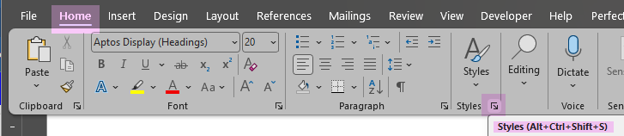
In the top menu, click on Home, then the arrow in a box under Styles, or Alt+Ctrl+Shift+S, to open the Styles panel.
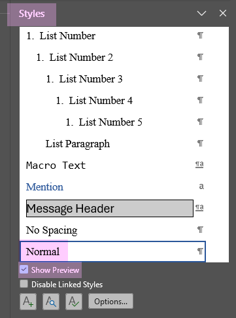
The location of the cursor in your text when you open the Styles panel determines where, on this lengthy list, the panel opens. My cursor was on a line that had the Normal style applied.
If it is not already activated, check the box next to Show Preview. This gives you a visual display of the existing formatting for each style.
To apply styles—in this example we’ll use the Heading 1 style—to the top line, put the cursor anywhere in that first line.

Then scroll through the list of styles and click on Heading 1
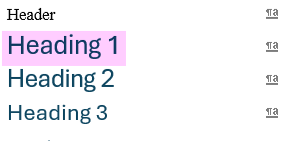
The default formatting for the Heading 1 style is now applied.
Gettysburg Cemetery Dedication
Repeat this process with your preferred styles for the rest of the text.
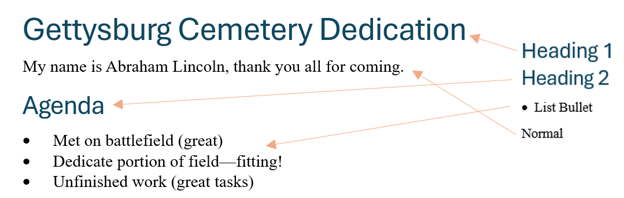
Because you are reading this post, you probably want something more than Word’s default formatting.
First, to simplify the Styles panel, click on Options.
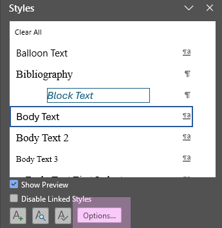
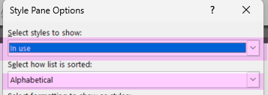
In Select Styles to Show, choose In Use. Under Select How List is Sorted, choose Alphabetical.
Now, the style list displays only those that are in use in this document and in alphabetical order.
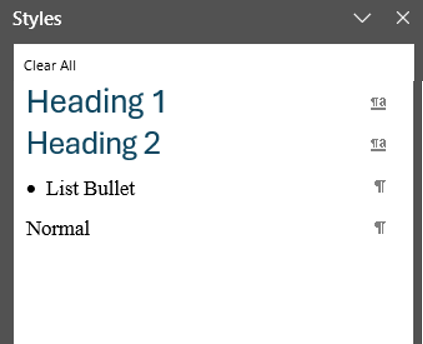
We will now modify Heading 1.
Gettysburg Cemetery Dedication
On the right‑hand side of the Styles panel, hover and click on the down arrow for Heading 1, then click Modify. (An extra bit: if you hover over the arrow without clicking, Word will show you the current formatting for that style.)
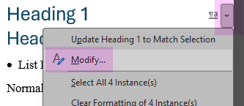
There are numerous options, but today we will change only the font and the font color.
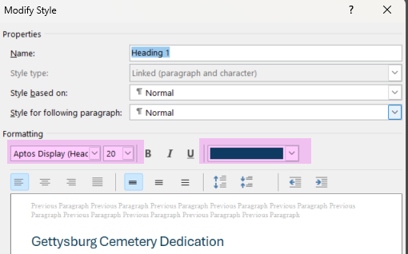

After clicking OK, the style will update all lines/paragraphs with Heading 1 applied.

A caution: it is easy to get lost in changing everything all at once. Make a few changes, then review the entire document to verify that the changes did what you hoped.
Applying changes to text formatting using the Styles panel saves you time: one change in that panel updates that style in the entire document. Resist the temptation to apply a format change to a few words, single heading, or paragraph otherwise. If you need to change that formatting, you will have to search through the document to find every instance.
Our next post in this series will expand on the use of styles. While you’re waiting for that, check out our other blogs: SMS Quick Takes, for detailed explanations on how to improve your organization’s SMS, and Meeting Your Needs, for how to take your meetings from tedious to thought provoking!
We welcome thoughtful and respectful discussion.
To keep this space safe and productive, please follow these guidelines:
Be respectful. Personal attacks, name-calling, and abusive language will not be tolerated.
Stay on topic. Keep comments relevant to the content of the post.
No spam or self-promotion. Links and promotions that are not relevant to the discussion will be removed.
Use appropriate language. This is a professional environment—please avoid profanity or offensive language.
Protect privacy. Don’t share personal information—yours or anyone else’s.
You may reply to, like, or flag other comments.
Comments are moderated and may be edited or removed at our discretion.
By commenting, you agree to abide by this policy.