
QC Your AI Images 02
Welcome back to our series on what to look for when performing quality control (QC) on an artificial intelligence (AI)‑created images and your options after finding errors!
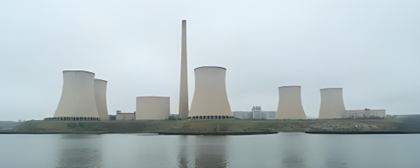
Let’s return to one of the images from part 1: a view of a nuclear power plant that included a smokestack usually found at a coal power plant.
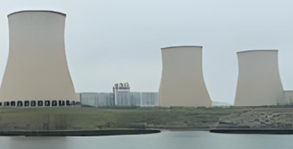
The simple fix was to crop the image to omit the smokestack.
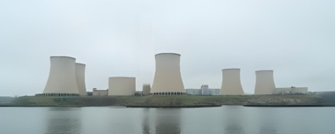
Suppose, however, that you want to see all the cooling towers or need a wider image for your project.
We can cover the smokestack using only PowerPoint.
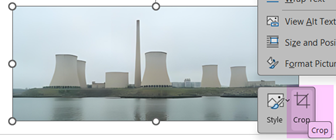
On the same slide that contains the original image, copy the image and paste it into the slide.
Right‑click on the copy and select “Crop.”
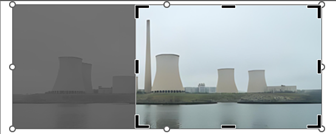
Click and drag the black lines on the sides, top, and bottom until…
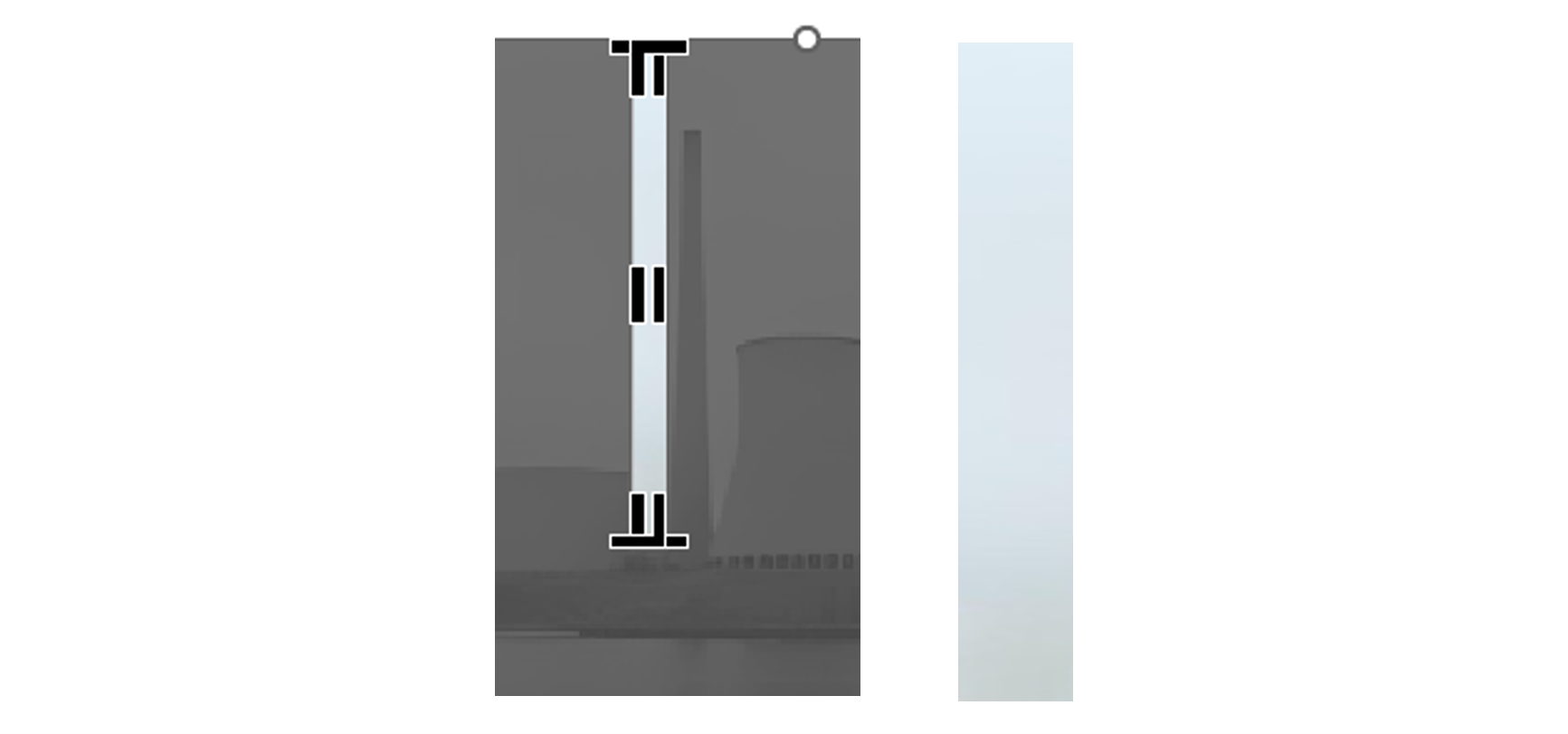
…all that remains is the area to one side of the smokestack—we want to capture that area because it has the color of the background.
After completing your cropping, click outside the image to apply the crop.
We now have a new image we can paste over the smokestack in the original image.
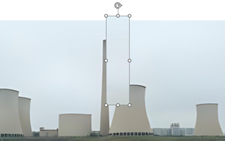
Drag the new image to the original one.
Because the new image was created after the original, it should be in front.
Everything in PowerPoint is on a layer. In this example, think of each image as if it was printed on paper.
You first put the original image on the table. Next, with a copy of the background image, you cut out the new image. Finally, you placed the new image on top of the original.
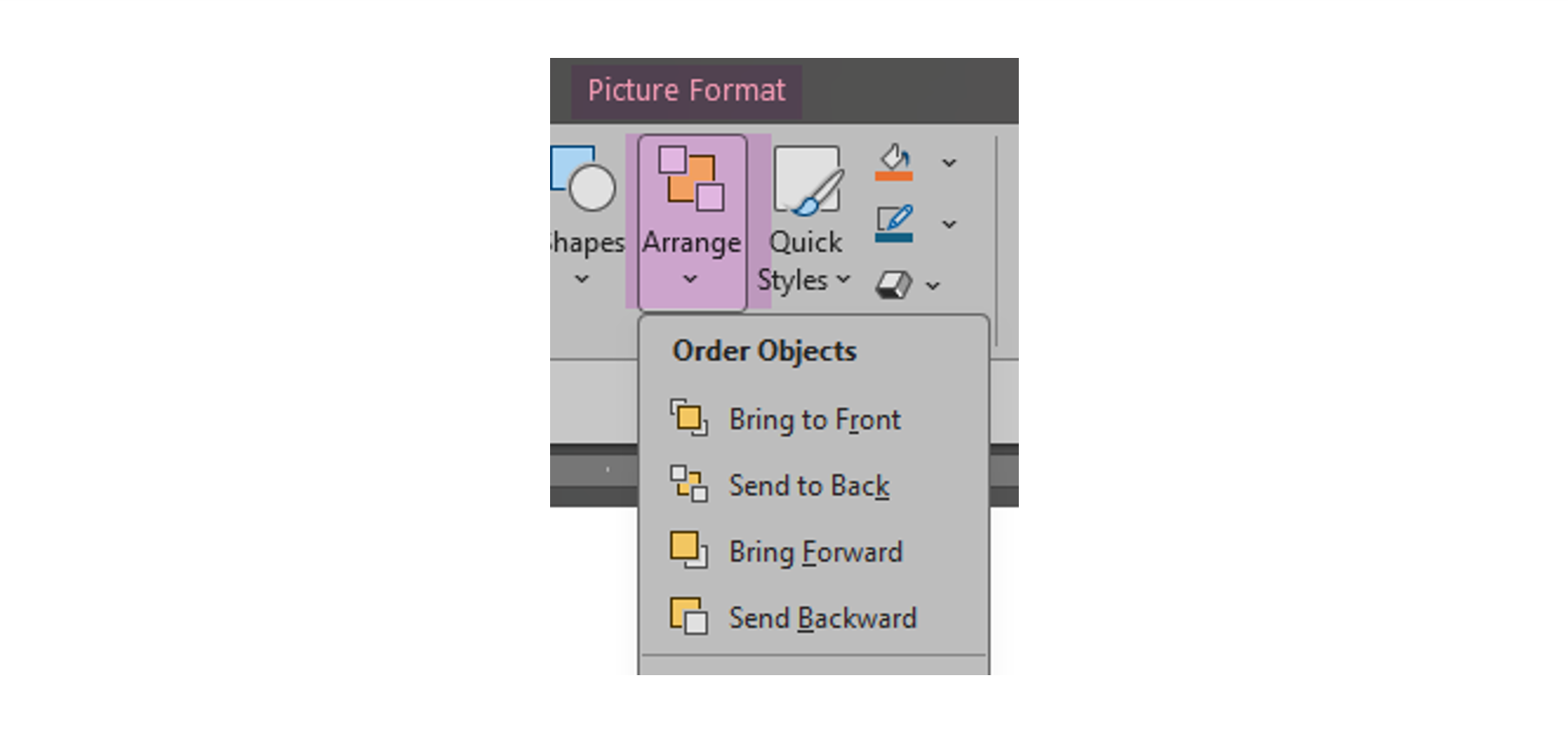
In PowerPoint, if you need to move a picture or a shape (text box or inserted shape) to be above or below its current location, go to “Picture” (or “Shape”) -> “Arrange,” and then click the appropriate command. “Bring to Front” or “Send to Back” moves the selected image all the way front or back.
“Bring Forward” or “Send Backward” only moves the item one layer.
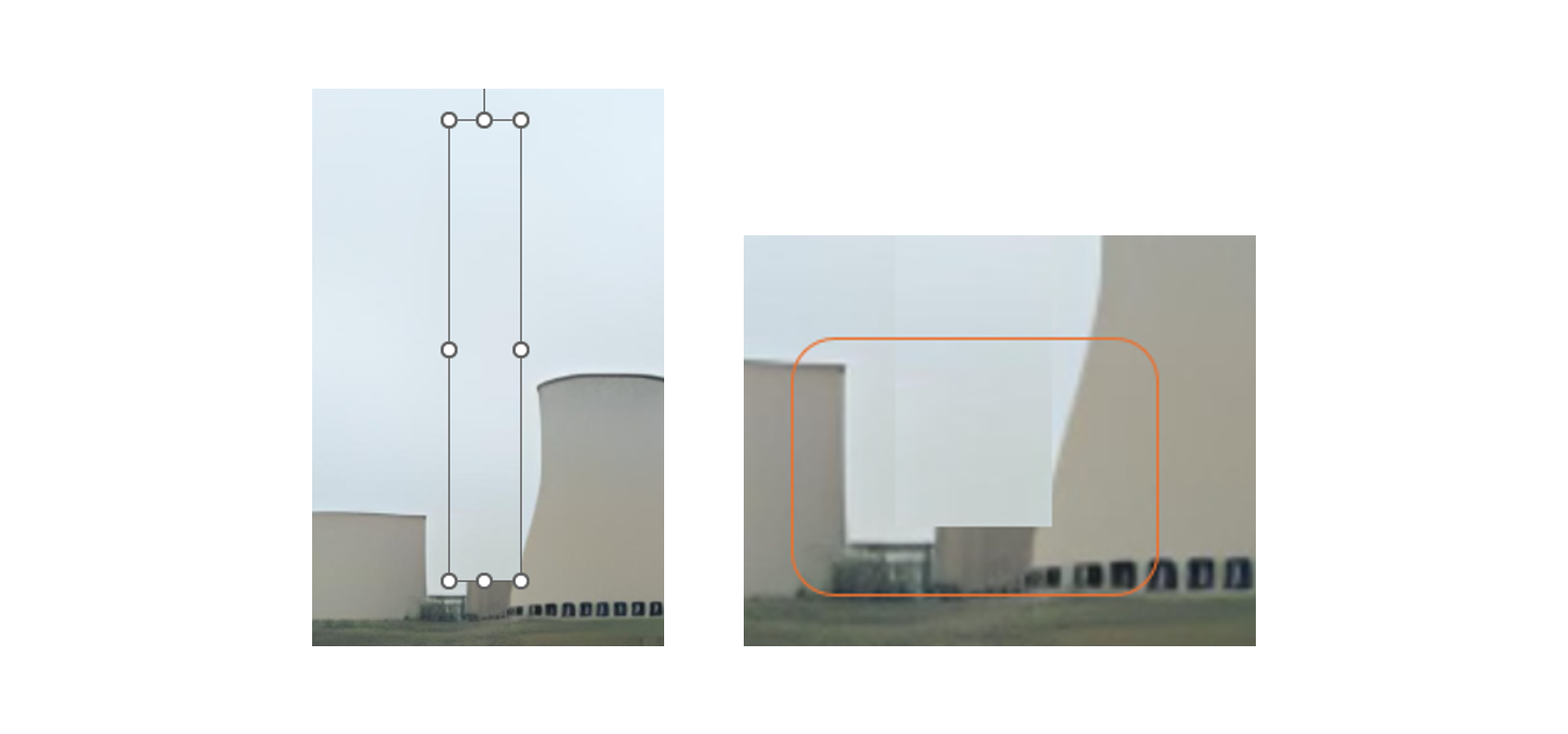
Drag the new image to cover the smokestack, then click outside the image to see the result.
Notice that we can see something with sharp corners has been placed on the original image. We’ll have to buff that out a little.
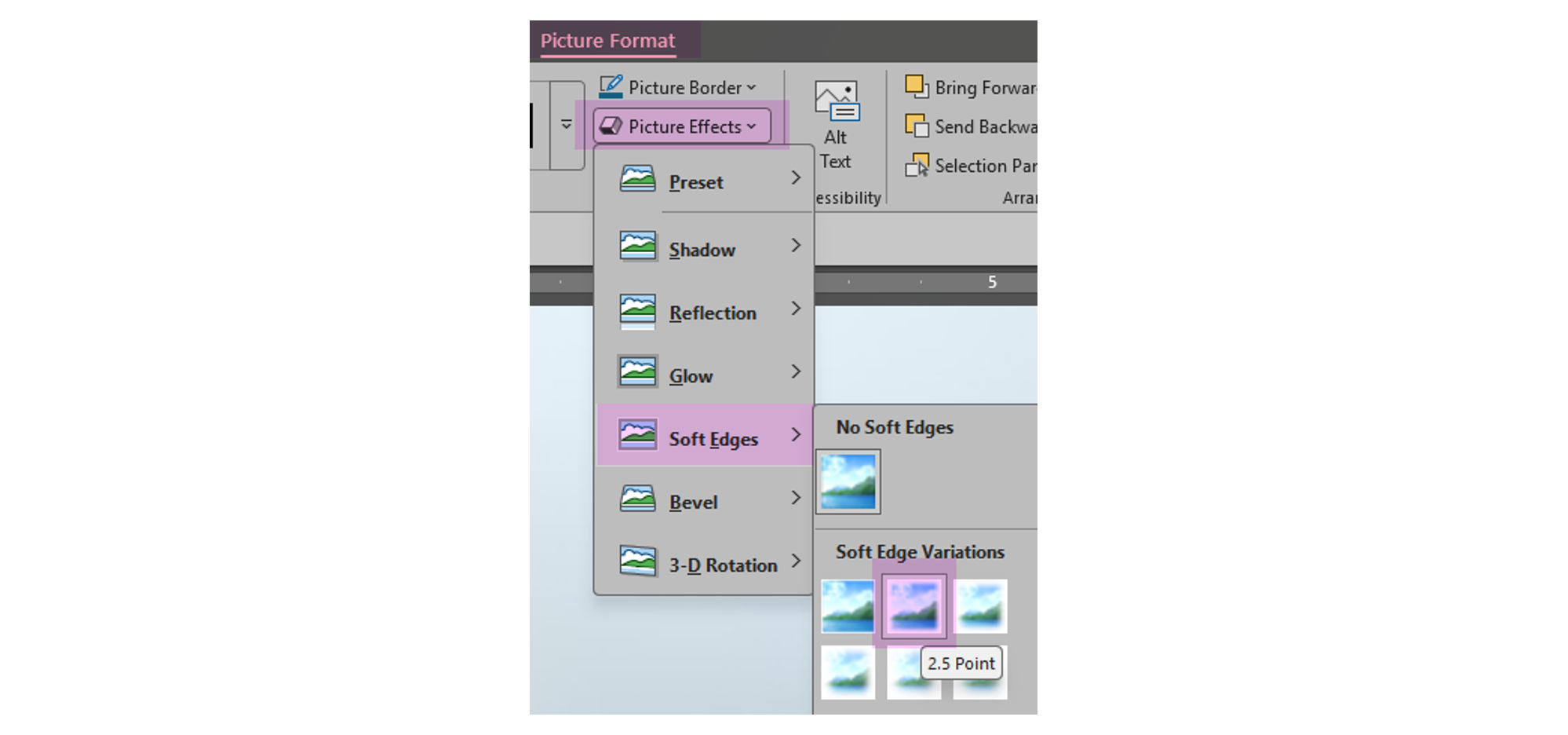
Make it stand out
Picture Format -> Picture Effects -> Soft Edges -> second Soft Edge Variation (middle of the top row).
Some image‑manipulating software refers to this as “feathering.” This creates a smooth transition between the new image and the original.
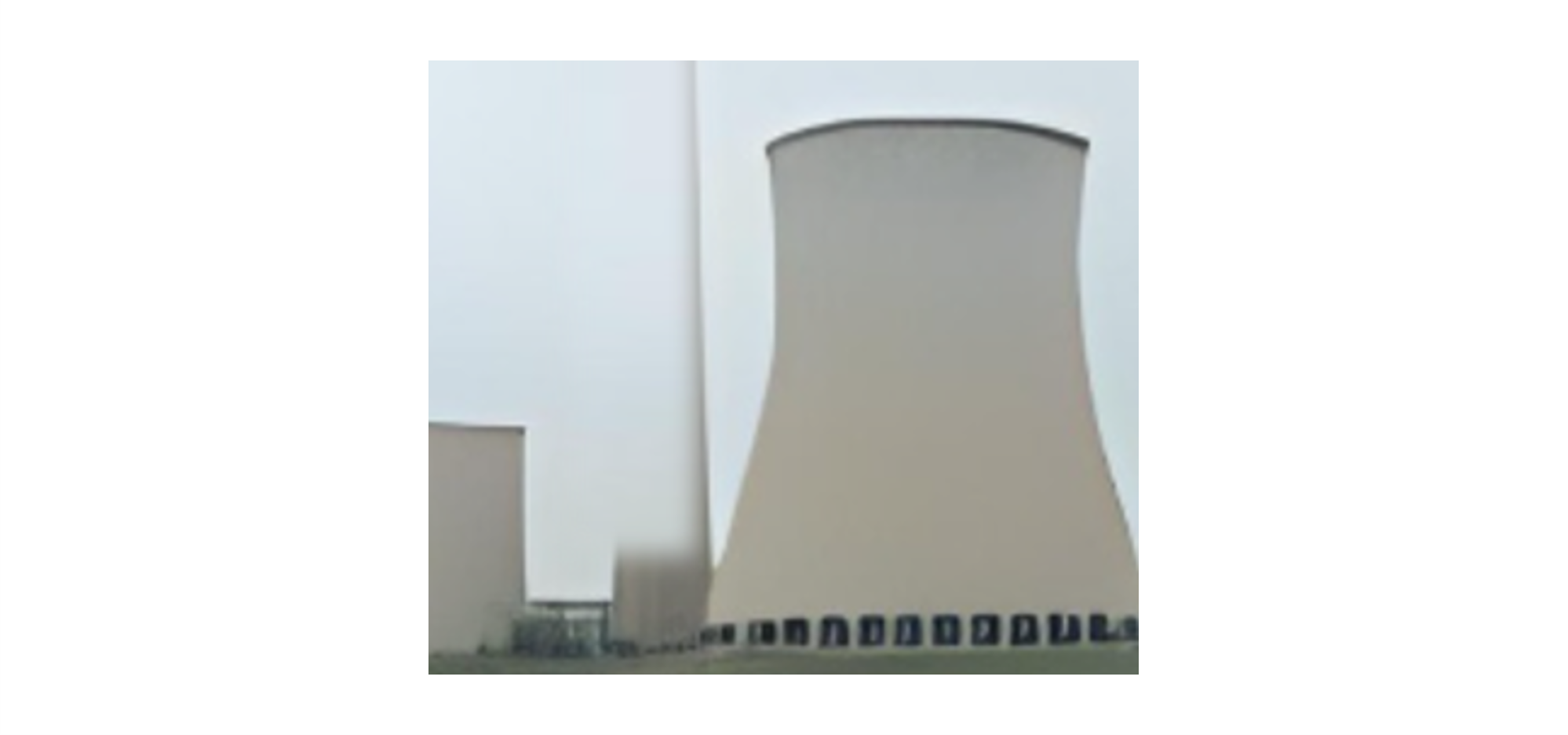
The soft edge worked perfectly on the left side of the smokestack but revealed too much on the right.
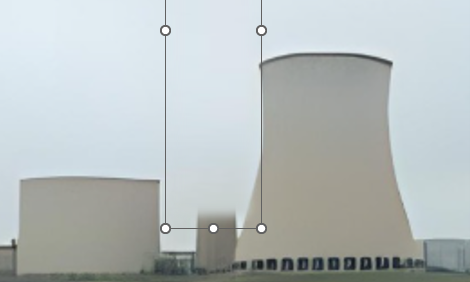
Thankfully, the new image with the soft edge is still an image. Click and drag the sides to widen the selection to cover the entire smokestack.
The bottom of the smokestack would be tricky to cover, but, with its top covered, it just looks like a low building.
Some sharp‑eyed viewers might wonder what is causing the shadow in the water next to the center cooling tower.
You could crop the bottom of the image just as we did with the top, or leave them to wonder.
Tune in next time for more ideas!
Back to Stet Happens: All Things Editorial home.
Do you have questions or concerns about editorial matters? Share them with us!
PAI Consulting | Helping you succeed. Learn more.
Any opinions expressed in this article are those of the author and not the opinion of PAI Consulting. In addition, this article may contain links to third-party websites. PAI Consulting does not endorse or make any representations about them, or any information, software, or other products or materials found there, or any results that may be obtained from using them.
We welcome thoughtful and respectful discussion.
To keep this space safe and productive, please follow these guidelines:
Be respectful. Personal attacks, name-calling, and abusive language will not be tolerated.
Stay on topic. Keep comments relevant to the content of the post.
No spam or self-promotion. Links and promotions that are not relevant to the discussion will be removed.
Use appropriate language. This is a professional environment—please avoid profanity or offensive language.
Protect privacy. Don’t share personal information—yours or anyone else’s.
You may reply to, like, or flag other comments.
Comments are moderated and may be edited or removed at our discretion.
By commenting, you agree to abide by this policy.